 Gusset
Documentation › Loads
Loads
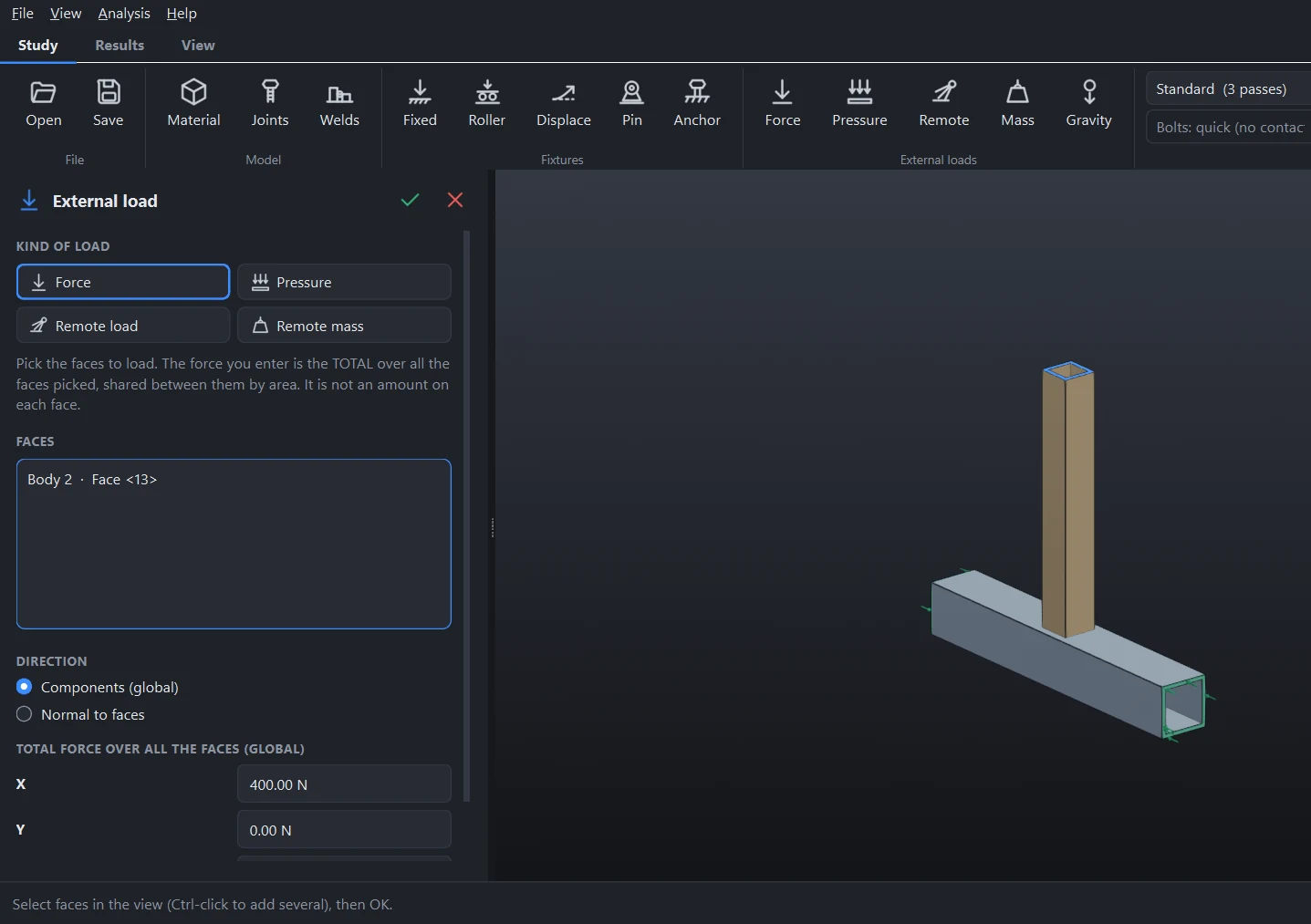
A load says what the model has to carry. The values you type are totals in newtons, in the model's own X, Y and Z, unless the panel says otherwise.
Adding a load
- Choose a kind in the External loads group of the Study tab, or right-click a face.
- Click the faces it acts on.
- Type its size and accept.
Under the boxes the panel says in words what your numbers come to on the faces you picked. Read that line: it catches most mistakes.
The kinds
| Kind | What you type | How it acts |
|---|---|---|
| Force | The total force in N, as X, Y and Z components or as one value normal to the faces. | Shared between the faces by area. It is the total, not an amount on each face. |
| Pressure | A pressure in MPa. | On every face picked, pushing into it. The total force grows with the area. |
| Remote load | A force in N and a moment in N·mm, and the point they act at. | Carried by the picked faces with exactly that force and moment. The faces are not made rigid. |
| Remote mass | A mass in kg and the point it sits at. | Its weight acts through the point under gravity. It adds load and no stiffness. |
| Gravity | On or off, and the acceleration in m/s². | The self-weight of every part, from its material's density. |
Force on several faces
A force on several faces is shared by area, so a larger face takes more of it. If you want the same force at each of several places, such as 500 N on each of four lugs, add a load for each.
Remote load
Use it for a load that reaches the part through something you have not modelled: a bracket, a lever, a wheel. Put the point where the force really acts. The offset from the faces becomes a moment on them, as it would in the real thing. With At the centre of the faces ticked it acts at their centre, and you can still add a moment.
Remote mass
Use it for a motor, a tank or a payload carried on the picked faces. It loads the model only when gravity is on, and the panel warns you when it is off. The mass is not counted in the table of part masses or in the natural frequencies.
Gravity
Choose Gravity and tick Include gravity. The direction is the one you gave as “down” when the model opened; change the X, Y and Z of the acceleration if it is wrong. On large frames self-weight is often the largest load there is, so switch it on unless you have a reason not to.
Trying different loads
When only the size, direction or point of a load changes, with the same faces, fixtures, materials and accuracy, the next solve reuses the last solution and returns in a fraction of the time. This makes it quick to try a load at several sizes.
Right-click a load in the tree for Suppress, to leave it out of the next solve without deleting it.
Choosing well
- Load a face, not an edge or a point. Loads are applied to faces. Where a load arrives through a small area, pick that small face, or use a remote load carried by the faces around a hole.
- Check the total. After solving, the reactions in the report add up to the loads applied and the weight. If they do not match what you expected, a load is not what you meant.
- A linear analysis scales. Twice the load gives twice the stress and deflection. You can solve at a round number and scale by hand.
Something wrong or missing on this page? Tell us.